
 Ryan Huff
How to Fix Quote Approval Delays in HubSpot
 Quotivity: Nov 17, 2026, 3:42:06 PM
Quote approvals slow HubSpot deals for five reasons. Every quote gets routed. The rules live in someone's head. Approvals go to one named person...
Available now on the Enterprise plan. When a Quote Rule adds a product, its columns can now copy a value from the deal or calculate one with a formula.
Add Line Items used to stamp one set of values on every quote that matched. That's fine until the right value depends on the deal. Then you kept another rule for each service tier, or you added the product in one rule and set its properties in a second.
Cloning rules gets the right value onto the quote, and it works. The cost shows up later. One product's setup is spread across several rules that look almost identical, and every new answer option means another copy to build and keep in sync.
Picture a manufacturer that sells industrial automation panels, plus an optional service plan. Call them Northfield Controls. (This is an illustration, not a customer story.) Their Guided Selling flow asks "Support level?" The answers are Standard, Priority, and 24/7, and the deal stores contract length.
To add the service plan with the right tier and term, their admin kept three Add rules, one per support level, each with Service Tier typed in by hand. An Update Line Items rule copied Contract Length into Term. A fourth support level meant another rule. "Why does this quote say Priority?" meant tracing four rules.
Four rules, for one product.
Most columns in an Add Line Items outcome can now hold more than a typed value. Open a column, pick a method, and the rule fills that property in when it adds the product.
Copy from Property reads a value that's already there. The source can be a Deal property, a Company property, a Roll-up, or a Guided Selling Flow Response.
Northfield's admin keeps one rule. It adds the service plan, copies Service Tier from the "Support level?" response, and copies Term (Months) from the deal's Contract Length. A new support level doesn't need a new rule.
Set with Formula builds the value with the same formula editor you use in Calculated Pricing and the Update Line Items outcome. Say a rule adds a Freight line whenever the quote has weight on it. The Weight (lbs) column can be set to a Total Weight roll-up, so the freight line carries the quote's total weight instead of a number someone guessed when they built the rule.
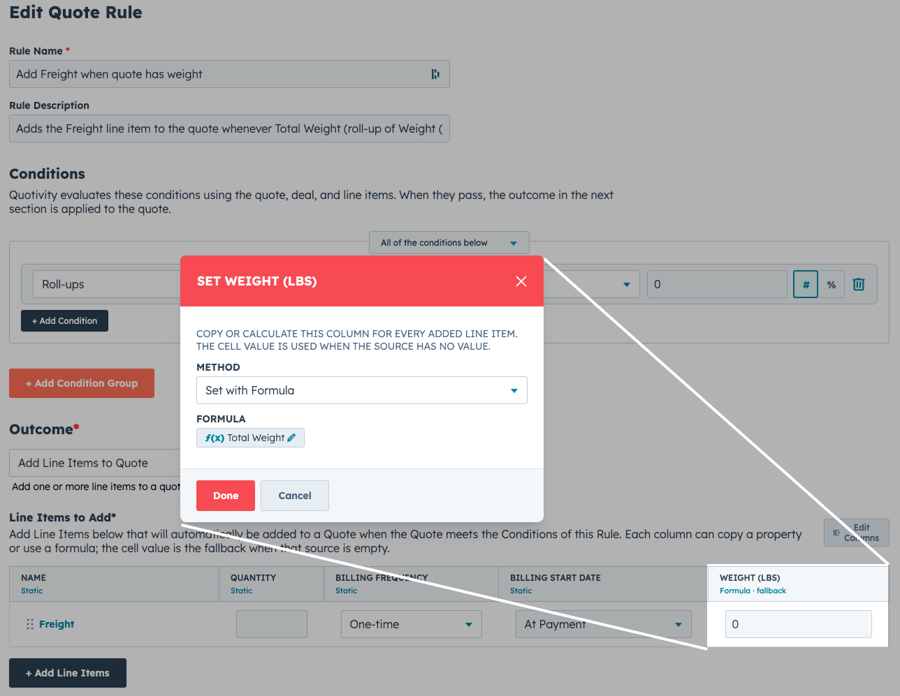
The value you type in the cell still matters, because it becomes the fallback. If the source has no value or the formula returns nothing, the rule uses the cell value, then the HubSpot product default. A real 0, false, or an explicit empty string from the source counts as a value and gets written.
When the conditions pass, the line item arrives with those values already set. The rep doesn't retype the tier, and nobody has to remember the contract length.
Quote Automation and the quoting agent run the same rules, so the line item can arrive filled in with no one sitting in Quote Builder. The values are written onto the HubSpot line item, where your reports, workflows, and downstream systems can read them.
Pick the rule you've cloned the most. If you have three versions of the same Add rule that differ by one typed value, that value belongs in a column that copies from the deal. Collapse them into one, keep the typed value as the fallback, and retire the rest.
If the line item is already on the quote and needs to follow the deal after that, use Update Line Items.
Available now on the Enterprise plan. The setup steps are in Adding line items and collections. If you want this walked through on your own rules, book a demo.
The rep already answered the question once. Now the rule can read the answer.
 Quotivity: Nov 17, 2026, 3:42:06 PM
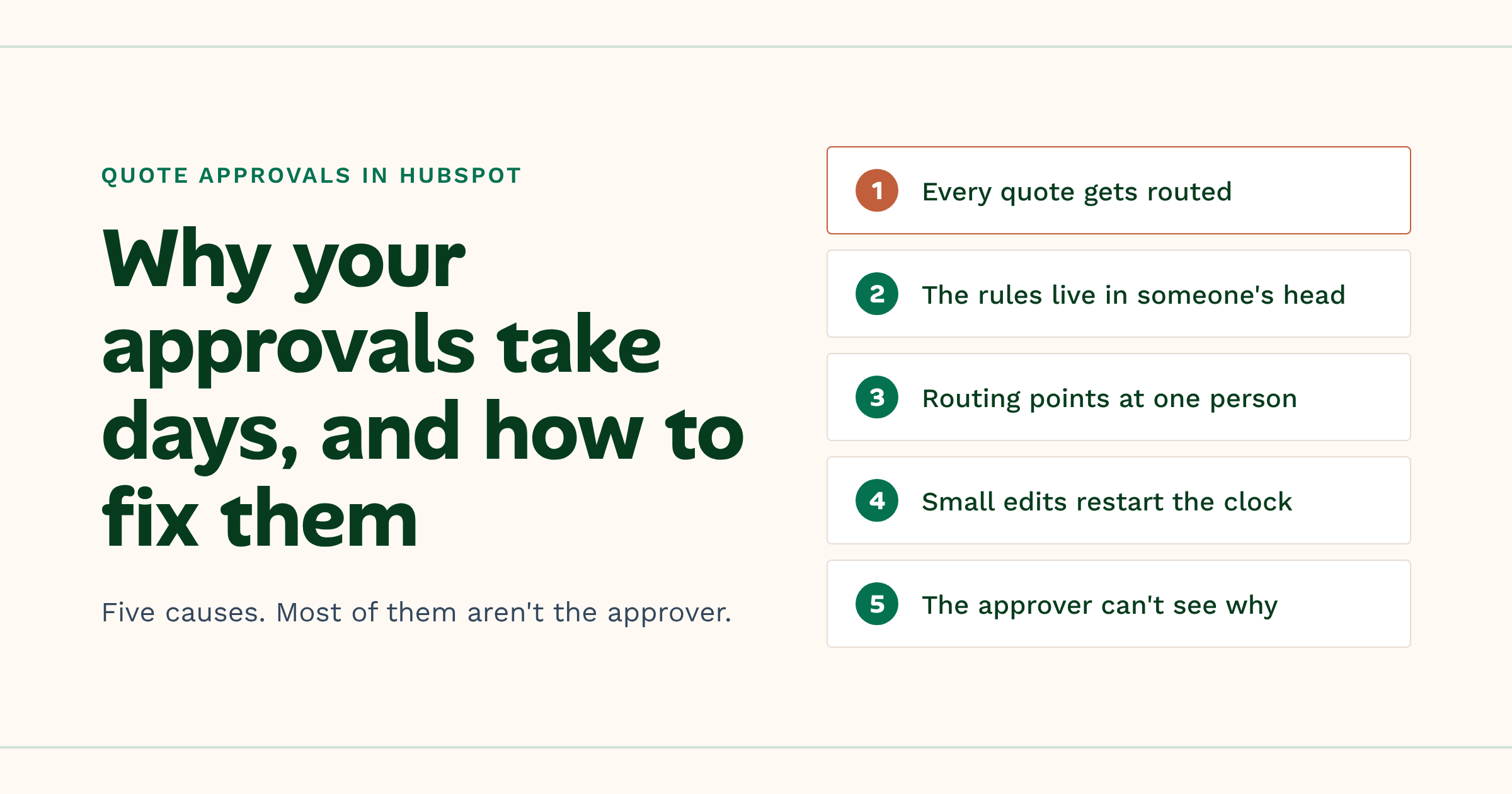
Quote approvals slow HubSpot deals for five reasons. Every quote gets routed. The rules live in someone's head. Approvals go to one named person...
 Ryan Huff: Nov 16, 2026, 11:47:55 AM
It's been a big month, already. So, rather than waiting another two weeks, we thought we'd send this one out now.
 Ryan Huff: Nov 10, 2026, 6:15:01 AM
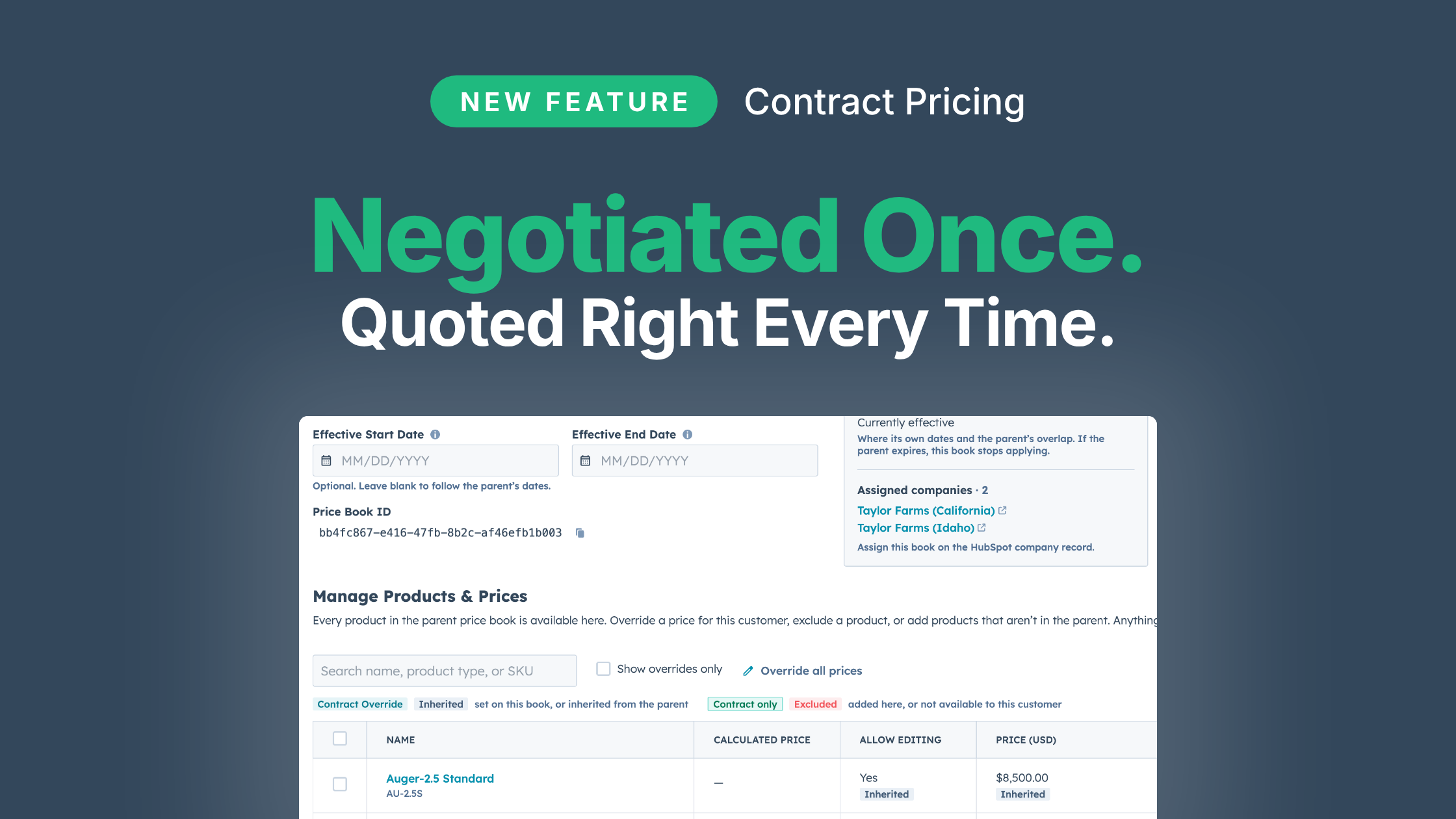
Available on the Enterprise plan. Every account gets the price it negotiated on every quote, without a spreadsheet, a duplicate product or a second...
 Quotivity : Jul 29, 2026, 2:23:03 PM
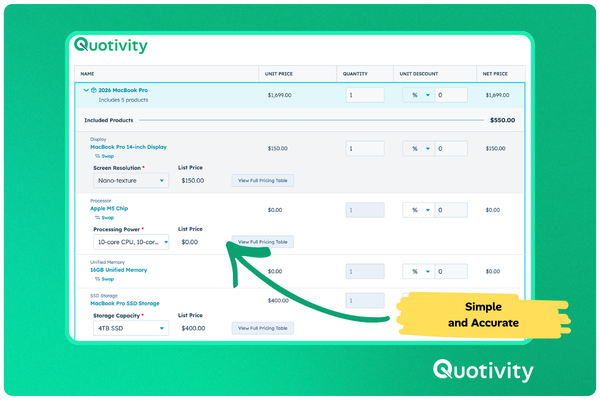
Quotivity's new Product Configurator streamlines product configuration in HubSpot, making it easy for reps to select valid options without confusion.
 Ryan Huff : Feb 23, 2026, 7:59:59 AM
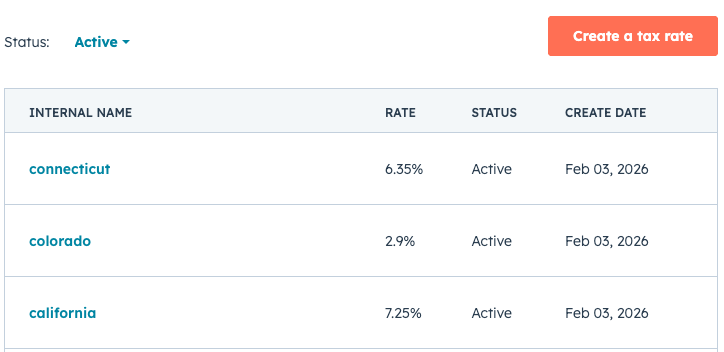
New Quotivity update: integrate HubSpot line item tax rates for more accurate, consistent quotes and reduced manual effort.
 Ryan Huff : Feb 20, 2026, 12:30:00 AM
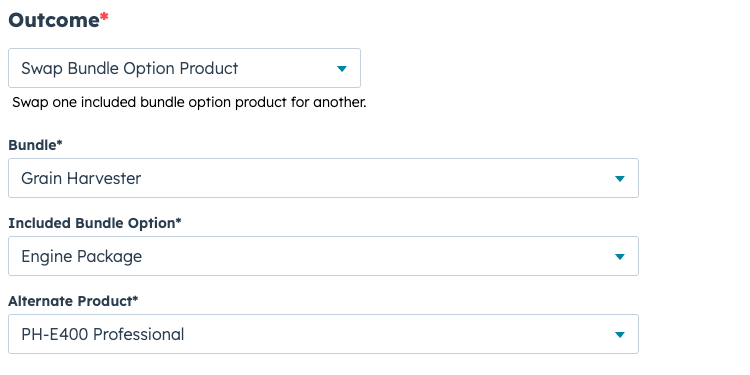
Automate bundle option swaps in Quotivity to ensure accurate configurations and speed up quoting processes with the new Swap Bundle Option Product...